Recently , we were working on an implementation where I need to:
a. Populate all the SQL servers in the LAN , when n/w is connected
b. Poplulate all the SQL servers running on my system , when n/w is not connected.
When reading this problem statement we devised a big flowchart with lot of conditions:
a. i. Check n/w
a. ii If connected , read all SQL Servers
a. iii List it in drop down.
b. i Check n/w
b. ii If not connected , see which all SQL Servers are installed.
b. iii Check if servers are running
b. iv List all the SQL Servers in the drop down.
b. v If you don't find anything show proper message.
How , we achieved it??
We just knocked-off checking the LAN Connectivity.
So, one loop is removed.
We just knocked-off reading SQL Servers installed in user's PC.
So, another condition removed.
We also knowcked-off , checking which SQL servers are running.
So, what we have now??
Only following lines of code:
Add namespaces:
using
System.Data.Sql;
using
System.Data.SqlClient;
Create an instance of DataTable
DataTable
dt = new DataTable();
Call the GetDataSources() method of CreateDataSourceEnumertaor namespace:
dt =
SqlClientFactory.Instance.CreateDataSourceEnumerator().GetDataSources();
This above line will give you a data table containing all the SQL Servers if network is available.
Else, it will return a datatable containing all the SQL Server instances that are installed and running in your local system.
Yippiee!!!
You can read more of CreateDataSourceEnumerator here.
Monday, 10 December 2012

Sunday, 9 December 2012
Check if network is connected : C#
Recently , there was a situation where we had to check for network availability , following are the ways we achieved it:
Way 1:
Here I am using the In-built method GetIsNetworkAvailable.
The method GetIsNetworkAvailable will considered a network to be connected if the network interface is up.
For this to work your network should not be a tunnel or loopback interface.
You can get more info on tunnel/loopback interface here.
if (System.Net.NetworkInformation.NetworkInterface.GetIsNetworkAvailable())
MessageBox.Show("Hi");
else
MessageBox.Show("Bye")
Way 2:
You can try using the Ping Class
var ping = new Ping();
var options = new PingOptions { DontFragment = true };
//just need some data. this sends 10 bytes.
var buffer = Encoding.ASCII.GetBytes(new string('z', 10));
var host = "Your Host Name";
try
{
var reply = ping.Send(host, 60, buffer, options);
if (reply == null)
{
MessageBox.Show("Reply was null");
return;
}
if (reply.Status == IPStatus.Success)
{
MessageBox.Show("Ping was successful.");
}
else
{
MessageBox.Show("Ping failed.");
}
}
catch (Exception ex)
{
MessageBox.Show(ex.Message);
}
Way 3:
You can ping a particular IP and see if you are able to connect , you are connected , else you are not connected. You can also give your intranet page name and try to get a response from it as well.
try
{
WebRequest request = WebRequest.Create("http://www.google.com");
WebResponse response = request.GetResponse();
StreamReader stream = new StreamReader(response.GetResponseStream());
MessageBox.Show("Hi");
}
catch
{
MessageBox.Show("Bye");
}
Way 1:
Here I am using the In-built method GetIsNetworkAvailable.
The method GetIsNetworkAvailable will considered a network to be connected if the network interface is up.
For this to work your network should not be a tunnel or loopback interface.
You can get more info on tunnel/loopback interface here.
if (System.Net.NetworkInformation.NetworkInterface.GetIsNetworkAvailable())
MessageBox.Show("Hi");
else
MessageBox.Show("Bye")
Way 2:
You can try using the Ping Class
var ping = new Ping();
var options = new PingOptions { DontFragment = true };
//just need some data. this sends 10 bytes.
var buffer = Encoding.ASCII.GetBytes(new string('z', 10));
var host = "Your Host Name";
try
{
var reply = ping.Send(host, 60, buffer, options);
if (reply == null)
{
MessageBox.Show("Reply was null");
return;
}
if (reply.Status == IPStatus.Success)
{
MessageBox.Show("Ping was successful.");
}
else
{
MessageBox.Show("Ping failed.");
}
}
catch (Exception ex)
{
MessageBox.Show(ex.Message);
}
Way 3:
You can ping a particular IP and see if you are able to connect , you are connected , else you are not connected. You can also give your intranet page name and try to get a response from it as well.
try
{
WebRequest request = WebRequest.Create("http://www.google.com");
WebResponse response = request.GetResponse();
StreamReader stream = new StreamReader(response.GetResponseStream());
MessageBox.Show("Hi");
}
catch
{
MessageBox.Show("Bye");
}
Saturday, 8 December 2012
MCSD-Windows 8 : C#/XAML
Windows 8 is the new OS released from Microsoft , using Windows 8 , Visual Studio 2012 , .Net framework 4.5 you can create a fast , fluid app which can run in a Windows 8 PC , tablets , Windows 8 mobiles and handheld.
Now you can earn your Microsft certification (MCSD) to demonstrate your design and development skills in Windows 8.MCSD for Windows 8 is available in both HTML5/JS track or C#/XAML track.

We will try to see what it needs to get certified in Windows 8 C#/XAML track.
To be called MCSD -Windows Store Apps you need to clear three papers:
a. Programming in C#
b. Essentials of Developing Windows Store Apps Using C#
c.Advanced Windows Store App Development Using C#
Why do I need to take a paper in C# again? I possess all fundamentals in C# , why I have to write the exam again? If you ask me this question , I will say from my understanding of Windows 8 , .Net framework 4.5 and C# 5.0 , there are so many changes in the framework , in the namespaces used , in the way we utilize the methods there have been many fundamental changes and you need to understand the fundamentals clearly to demonstrate your expertise in developing and designing windows store apps.
When I started with reading C# 5.0 articles , at begining I found almost all the articles talking loudly about async/await.But when started using it, I found apart from async/await there still many more things like monitoring apps, ClassFullException etc that are also new.If you clear this exam you will be called a Micrsoft Specialist.
In this certification exam one is basically validated for their programming skills.
You can get more details at Exam 70-483
If you have a good hands-on skill in developing basic app store applications , you can go with Essentials of Developing Windows Store Apps using C#. The best thing which I found in this certification is , this exam validates your skills in MVVM , SOC design pattern. As such Windows 8 focuses more on creating and designing the UI and this exam also measures your skills in designing the UI.
In earlier days , with our dev teams , we always used to have a HTML UI expert , but now the trends are different , now that Visual Studio and Blend are coupled together so a developer and a UI designer are now not two different jobs. :) You are expected to design the UI as well develop the code and I think this exam is created so that you are powered with both the skills.
Apart from code design skills and UI design skills in this exam you will be measured with your knowledge on web , data , native as well as enterprise apps.
You can get more details at Exam 70-484
My knowledge on Windows 8 is just a month old. Still I am in my learning , experimenting mode.Initially I was scared to see the syllabus for the third exam , Advanced Windows Store App Development Using C#. Somehow I opened this page and checked the course details, smiled to myself. This exam is an essential one and your knowledge in Windows 8 will not be of any use if you don't understand the topics that are detailed for the adavanced store app cert.
You can get more deyails at Exam 70-485
Now you can earn your Microsft certification (MCSD) to demonstrate your design and development skills in Windows 8.MCSD for Windows 8 is available in both HTML5/JS track or C#/XAML track.
We will try to see what it needs to get certified in Windows 8 C#/XAML track.
To be called MCSD -Windows Store Apps you need to clear three papers:
a. Programming in C#
b. Essentials of Developing Windows Store Apps Using C#
c.Advanced Windows Store App Development Using C#
Why do I need to take a paper in C# again? I possess all fundamentals in C# , why I have to write the exam again? If you ask me this question , I will say from my understanding of Windows 8 , .Net framework 4.5 and C# 5.0 , there are so many changes in the framework , in the namespaces used , in the way we utilize the methods there have been many fundamental changes and you need to understand the fundamentals clearly to demonstrate your expertise in developing and designing windows store apps.
When I started with reading C# 5.0 articles , at begining I found almost all the articles talking loudly about async/await.But when started using it, I found apart from async/await there still many more things like monitoring apps, ClassFullException etc that are also new.If you clear this exam you will be called a Micrsoft Specialist.
In this certification exam one is basically validated for their programming skills.
You can get more details at Exam 70-483
If you have a good hands-on skill in developing basic app store applications , you can go with Essentials of Developing Windows Store Apps using C#. The best thing which I found in this certification is , this exam validates your skills in MVVM , SOC design pattern. As such Windows 8 focuses more on creating and designing the UI and this exam also measures your skills in designing the UI.
In earlier days , with our dev teams , we always used to have a HTML UI expert , but now the trends are different , now that Visual Studio and Blend are coupled together so a developer and a UI designer are now not two different jobs. :) You are expected to design the UI as well develop the code and I think this exam is created so that you are powered with both the skills.
Apart from code design skills and UI design skills in this exam you will be measured with your knowledge on web , data , native as well as enterprise apps.
You can get more details at Exam 70-484
My knowledge on Windows 8 is just a month old. Still I am in my learning , experimenting mode.Initially I was scared to see the syllabus for the third exam , Advanced Windows Store App Development Using C#. Somehow I opened this page and checked the course details, smiled to myself. This exam is an essential one and your knowledge in Windows 8 will not be of any use if you don't understand the topics that are detailed for the adavanced store app cert.
You can get more deyails at Exam 70-485
Friday, 7 December 2012
Windows 8 Apps : Understanding states of an app
In this article I will try to bring out my understanding on how Windows 8 Apps state work. This is an introductory article and the details on each state will be talked on in other articles in this series.
An app in its lifetime changes its states from Not running to running , running to suspended , suspended back to running (through resume.)
An app is in the Not Running State in any of the following scenarios:
a. App is installed/deployed.
b. App is launched.
c. App is suspended.
An app is in the Running state when:
a. It is activated , either manually or through some other process.
An app is in the Suspended state when:
a. User switches from one app to the other.
b. Windows enters into low power state.
During its lifecycle the app continuously toggles between theses three states.

Let us see what exactly happens within an application.
A user logs on to windows app store:
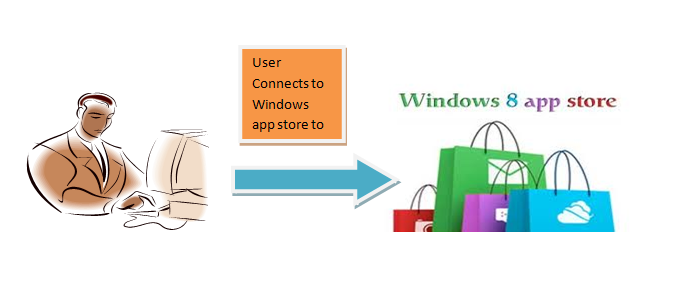
Selects the appropriate app to download to his device(PC, laptops, tablet, mobile) and downloads it.


An app in its lifetime changes its states from Not running to running , running to suspended , suspended back to running (through resume.)
An app is in the Not Running State in any of the following scenarios:
a. App is installed/deployed.
b. App is launched.
c. App is suspended.
An app is in the Running state when:
a. It is activated , either manually or through some other process.
An app is in the Suspended state when:
a. User switches from one app to the other.
b. Windows enters into low power state.
During its lifecycle the app continuously toggles between theses three states.
Let us see what exactly happens within an application.
A user logs on to windows app store:
Selects the appropriate app to download to his device(PC, laptops, tablet, mobile) and downloads it.
The app consists of a manifest and file(s) .
Manifest in app
a. Contains the metadata for the application
b. Describes the capabilities of the app
c. Is used by the os while installing/uninstalling the app.
What do we mean by 'capabilities of the app' , basically capabilities of the app will say whether the app has internet capabilities , access to resources on the device , connection with other devices etc.
Now that the app is installed on user's device what happens next??
After the deployment , User clicks on the app to launch it.
Whenever user launches the app , the app shows a splash screen. Splash screen is shown to the user on behave of the Windows as the app readies itself to be presented.
What does a splash screen do?
A splash screen basically:
a. Makes the UI ready.
b. Registers Event Handlers.
c. Registers Custom Controls.
You need to handle the splash screen and app activation events carefully. Because if the app is not activated within a small time period(~15 seconds) , the OS may kill your app . To be on App store the app must get activated within 2-3 seconds. So, understanding of the splash screen and app activation is very important. We will discuss this in next blogs.
Best practices to add splash screens.
Let, see here what happens after splash screen is displayed and apps completes activation.

After the app is completes activation.
a. App enter into 'running' state.
b. Splash screen is torned down.(are the objects still alive ?? ideally no.)
Now, the app is activated and from not running state it enters into the running state.

An app can be activated either through manual launch or whenever the app is being called by device , or by any other processes like print , search etc.
Whenever user launches another app or toggles to some other app, the currently activated app enters the suspended state.
The application can also get into suspended state whenever windows enters low battery mode.
In suspended state the app:
a. Saves relevant app data
b. Saves relevant user data
c. Releases all the handlers.(if it has any)
d. Release all the resources its using.(if any)
Windows keeps the suspended apps in memory so that whenever user switches back , the app launches without hiccups.

In case the app is not resumed after a specific time (5~10 sec) , windows terminates the app. Even during the terminated state the app data/user data are stored. So, whenever the user wants to resume the app back/windows recovers from low battery , the app loads itself from the terminated state.
 If there are a lot of applications in the memory which are in suspended state , windows releases the memory by changing the state of the app to Not Running state.
Whenever the user closes the app the app state changes to Not running.
In next articles we will see more into the details of how to exploit these three states programmatically.
A splash screen basically:
a. Makes the UI ready.
b. Registers Event Handlers.
c. Registers Custom Controls.
You need to handle the splash screen and app activation events carefully. Because if the app is not activated within a small time period(~15 seconds) , the OS may kill your app . To be on App store the app must get activated within 2-3 seconds. So, understanding of the splash screen and app activation is very important. We will discuss this in next blogs.
Best practices to add splash screens.
Let, see here what happens after splash screen is displayed and apps completes activation.
After the app is completes activation.
a. App enter into 'running' state.
b. Splash screen is torned down.(are the objects still alive ?? ideally no.)
Now, the app is activated and from not running state it enters into the running state.
An app can be activated either through manual launch or whenever the app is being called by device , or by any other processes like print , search etc.
Whenever user launches another app or toggles to some other app, the currently activated app enters the suspended state.
The application can also get into suspended state whenever windows enters low battery mode.
In suspended state the app:
a. Saves relevant app data
b. Saves relevant user data
c. Releases all the handlers.(if it has any)
d. Release all the resources its using.(if any)
Windows keeps the suspended apps in memory so that whenever user switches back , the app launches without hiccups.
In case the app is not resumed after a specific time (5~10 sec) , windows terminates the app. Even during the terminated state the app data/user data are stored. So, whenever the user wants to resume the app back/windows recovers from low battery , the app loads itself from the terminated state.
Whenever the user closes the app the app state changes to Not running.
In next articles we will see more into the details of how to exploit these three states programmatically.
Monday, 3 December 2012
Windows 8 : Picture Password -Group Policy
In my previous article , How to create picture password we saw on how to create a picture password in your PC.
In this article we will try to explore how to create a picture password policy(disable picture password policy) for a domain user. Using this the user will not be able to set the picture password on the domain PC.
To set up a picture password policy in domain , follow the steps stated as follows:
Step 1: Click on Windows Key + C
Step 2: Click on Search icon
Step 3 : In the search icon enter gpedit.msc
 Step 4 : Group Policy Editor screen opens up.
 Step 5 :Select Local Computer Policy -->Administrative Templates --> System
 Step 6: In system select LogOn
 Step 7: In the right hand side of the window select "Turn-Off Picture Password Sign-On"
 Right click on the selection and choose edit.
Step 8: You are prompted with following screen
 Step 9: Select Disabled and click on Apply.
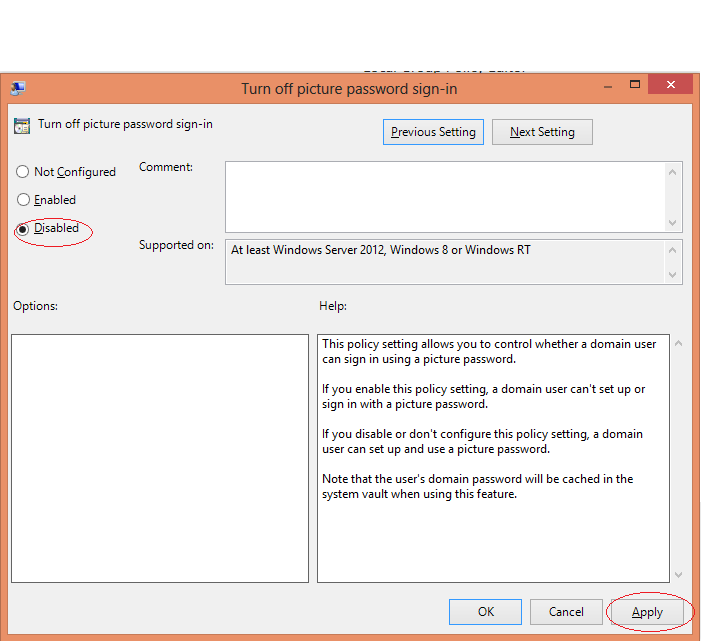
You are done , now the domain user will not be able set a picture password.
In this article we will try to explore how to create a picture password policy(disable picture password policy) for a domain user. Using this the user will not be able to set the picture password on the domain PC.
To set up a picture password policy in domain , follow the steps stated as follows:
Step 2: Click on Search icon
Step 3 : In the search icon enter gpedit.msc
Step 8: You are prompted with following screen
You are done , now the domain user will not be able set a picture password.
Windows 8 : Picture Password
Recently accidently I happened to view the following ad in youtube.

 Step 3: Click on Change PC Settings

Step 4 : In the PC Settings screen , select users.


 Step 7 : Now you can browse the picture you want to set up as a picture password and open it.
 Step 8 : In this step you need to confirm , if you want to use this pic or some other pic.
 Step 9 : On click of Use this picture , you are prompted with a screen to input three different gestures of yours.
 Give the three gestures.
Confirm the gestures and click on Finish.

I was amazed to know that the Windows team has taken security to a different level now. I wanted to know more about picture passwords. Believe me I found it interesting as well as amazing , amazing because I have never used a IPad/IPhone/Android before and this was the first time for me to come across/ read this kind of a real cool feature.
Now, there is no need to type in or remember a text password. You just need to select your favourite photo and draw patterns made of three different gestures. For example if you want to set a family photo as the picture password , select the photo and make gestures on your family members. To keep the password complexity intact as stated above you need to make three different gestures a mixture of points , lines and circles. You can also use a smiley , a heart or anything else as well.
Something like
Everytime you login you can draw the gestures on your loved one's face and you are logged in.
This is of a great use for the mobile and tablet users, it is handy , its safe ( other's may not be able to replicate your gestures.) You can use this feature in your PC with a mouse.
Now let's look how can you set a picture password
Step 1: Click on + C
+ C
+ C
Step 2: Click on settings
Step 4 : In the PC Settings screen , select users.
Step 5: When you click on create picture password , you need to confirm your current pwd.
Enter your password and click OK.
And you are shown with a screen , which gives you basic information on picture password.
Step 6 : Click on Choose picture button.
Confirm the gestures and click on Finish.
Next time when you log-in.
You can use either your normal password or the newly created password.
Sunday, 2 December 2012
Youngest Master Chef
Asu is now 17 months and he is growing so matured. Believe me he is a gem.
I love my little jackpot.
He is a helping handing to me , earlier he used to wash vegetables , now he is able to roll chappatis . :)
In 7 months:


In 17 months


Luv you Asu . :)
I love my little jackpot.
He is a helping handing to me , earlier he used to wash vegetables , now he is able to roll chappatis . :)
In 7 months:
In 17 months
Luv you Asu . :)
Subscribe to:
Posts (Atom)