Showing posts with label Windows Azure. Show all posts

Tuesday, 26 February 2013

Windows Azure Mobile Services- Intro

Introduction:


Integration of Windows 8 and Azure Services started with Windows Azure toolkit for Windows 8 , but then Microsoft renamed it as Windows Azure Mobile Services. So, now if you are planning to develop Windows Store Application using Windows Azure then you need to understand Windows Azure Mobile Services thoroughly.

As with Windows Azure Service , the Windows Azure Mobile Services enables developers to provision, configure, and consume scalable backend services.

If you are new to Windows Azure , don't get panic-ed , followin section is for you. If you already know Windows Azure please skip the next section.

Windows Azure: In few lines.

Windows Azure is nothing but a cloud-computing platform  from Microsoft that can:
a.  run applications
b. store data in the cloud.
So that the development team can do their work without worrying about the underlying infrastructure and can concentrate more on application development rather than thinking about how to manage the operating system.

Following are a few capabilities of Windows Azure than can help a developer/development team as such:

 a. Availability of on-demand compute services,
 b. Availability of on-demand storage services,
 c. Availability of on-demand  networking services,
 d. Content-delivery capabilities.


Since , the scope of this article is not to explain or introduce you to Windows Azure as such , so I am restricting my explanation here.

We are discussing about blending Windows 8 and Azure together.

In case you don't know what a Windows 8 App is , you can read the following section , else skip it.

Windows 8 apps in few lines:


Windows 8 apps are the applications created with metro style UI , or using Microsoft UI Design guidelines that can be brought on to Windows 8 platform irrespective of whether a PC , a tablet , a mobile or any other type of devices. You can refer to my blogs on developing Windows 8 app to get a holostic knowledge on development of these apps.

Now, wgen Windows 8 Apps are used with Azure , the architecture of the apps as such changes a little , instead of depending on SQLite ot text file as storage  , the app connects to Microsoft Cloud Services and gives you a feel of an app that is mobile and is always connected.

Architecture of Windows 8 App with Azure:


This type of Architecture basically takes advantage of Windows Push Notification Services.

Following is a basic outline of how the architecture of Windows 8 Cloud connected app looks like:

 We will look at the Windows Notification Services in next article.

Saturday, 26 January 2013

Windows Azure with database other than SQL Server

There are many application which are in asp.net/C# but use the database as Oracle / MySQL. How to convert these applications into a Azure cloud hosted application.

Option 1 : Write a completely new application for Azure cloud , also change the database from Oracle/MySQL or other to a SQL database on cloud.

Option 2: Port the asp.net app on Azure and  change the database from Oracle/MySQL or other to a SQL database on cloud.

Option 3 : Port the asp.net app on Azure and keep the database as is as an on-premise database.

Now , I will vote for option 3.

I will try to explain this with the following architecture solution.

We have the db as Orcale/My SQL which is present as an on-premise database , now create an ADO.Net entity Model for the database , create a WCF data service to connect to the database , host the WCF service on-premise. Port your asp.net application on Azure cloud and connect to the server which is hosting the WCF service using a service bus.

In case you want to know the solution in detail or want me to help you architecting your solution , write to me at archita.dash@happiestminds.com


Monday, 10 December 2012

Azure : VM Role and Virtual Machine

 
When talking to folks working on Azure , I have found many of the developers(junior as well as senior developers ) getting confused between Windows Azure VM role and Windows Azure Virtual Machine.


So, I thought of writing a small article to tell that these two features are not same  , although they sound same.


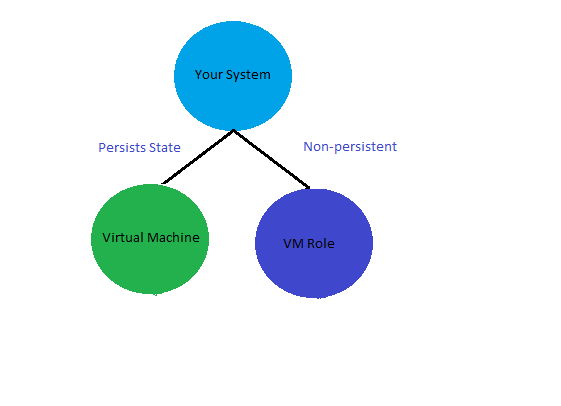
1. VM Role ; is PaaS (Platform as a Service)
    VM         ; is IaaS (Infrastructure as a Service)

Platform as a service (PaaS) is a category of cloud computing services that provide a computing platform and a solution stack as a service.it is a service model of cloud computing. In this model, the consumer creates the software using tools and/or libraries from the provider. The consumer also controls software deployment and configuration settings. The provider provides the networks, servers, storage and other services.
Infrastructure as a Service(IaaS) is the model where the user provides physical virtual machines and other  resources. The VMs run on hypervisor , Xen, kvm etc.


2. VM Role ; is stateless
    VM          ; is stateful

When I say stateless , I mean if the Azure fabric decides to start your VM role in some other host than the local file system will be lost. But in case of a Virtual Machine they are almost like your on-premise VMs , its just that they are running on Microsoft Data Center.
 
For this reason at time Azure Virtual Machines are also called as Persistent VM Roles.


3. VM Role : Maintains OS automatically
    VM          : You are responsible for maintain your VM


When you are using a VM Role no need for you to think about updating patches and software updates , the system take care of those automatically for you. But when you use a VM Role , you are responsible for managing and maintaining your machine.


4.  If you have an existing Linux machine and want to deploy it as a VM Role you cannot, but you can deploy it as a VM , that is allowed.


Conclusion:

Use a VM Role if you want to have a greater control over your provisioned application, use a VM if you want to take your on-premise OS(Microsoft/non-Microsoft OS) to Azure.


Thursday, 15 November 2012

Create a WordPress Site in Windows Azure

Recently participated in the azure challenge at http://www.meetwindowsazure.com/fast/challenge

I created a word press site for this challenge , uploaded the video and Yo got the T-shirt as well.

I will list out the steps to create the site here. For everyone's benefit I have uploaded the video for this towards the end of the blog.

Steps to create  WordPress site using Windows Azure:

I hope you have a windows azure account .
Step 1: Log in to Windows Azure Portal

Step 2: From the landing Page click on "Create an Item"


Step 3: From the next screen , choose Website.


Step 4 : Choose "From Gallery " Option.


Step 5 : Now the screen appears where you can choose and add a web app.
Scroll to the last of the list and Choose WordPress


Step 6 : Click on the arrow button in the bottom right of the screen


Step 7 : In the next screen choose a URL for your website and click next. ( arrow on bottom right)


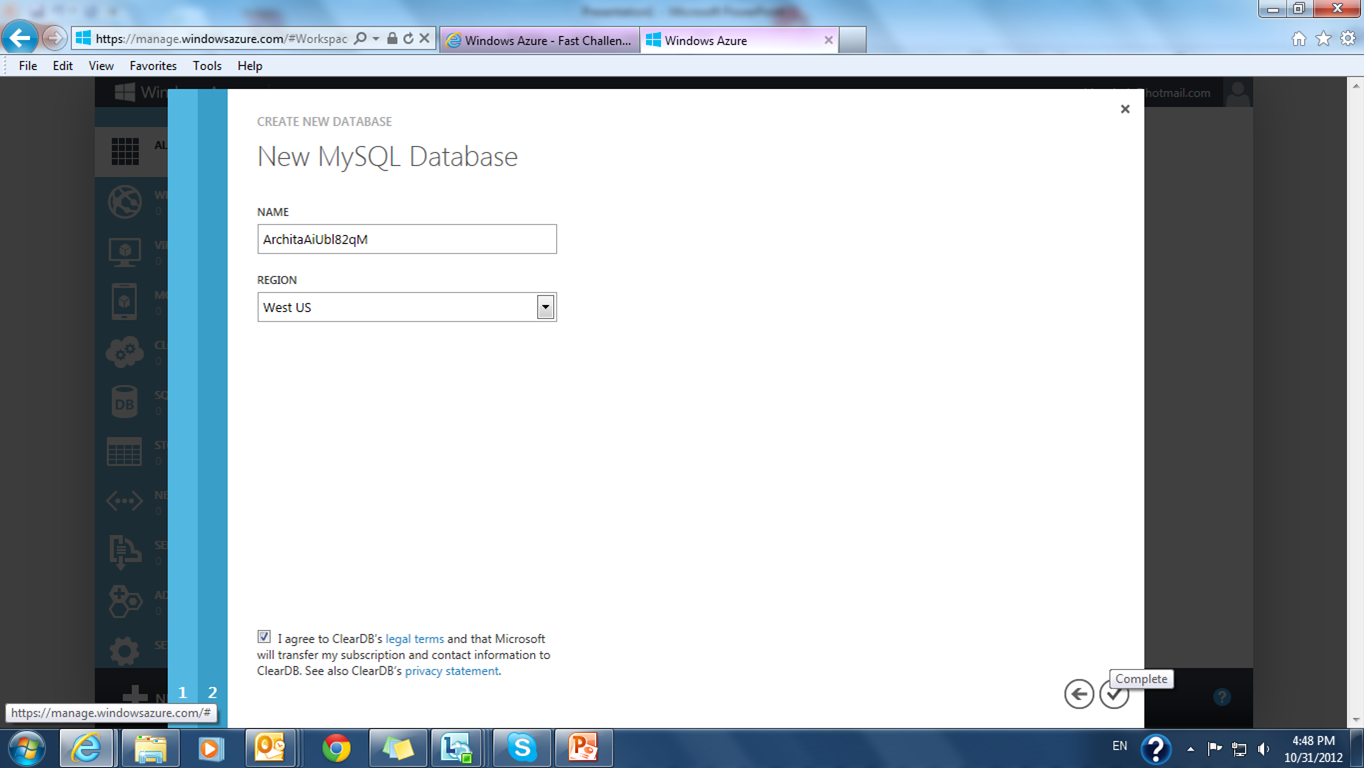
Step 8 : In the next screen give the database name.


 Step 9 : Click on the complete button.( the tick on bottom right)


Step 10 : You will be redirected to the websites page. Click on the link to your website.


Step 11: In this step you need to install the WordPress in your web site.
 Choose the site name and password.
Note : Userame by default is admin.


Step 12 : Now you can login to WordPress , give the username , pwd and login.


Step 13: From this screen you can change your website settings , look and feel as well write quick posts.


Step 14: Browse to the bottom , type in your post and say publish,


Step 15 : And you are done. Website is ready to be used by the world.


Demo video :
Demo to create a word press site


Tuesday, 28 August 2012

Notes on Azure -1


Windows Azure is Microsoft's Operating System for "The Cloud"
What is the Cloud ?
In simple words the cloud is nothing but an abstraction used for the Internet and the underlying infrastructure hosting it.The Windows Azure cloud primarily consists of lots & lots & lots of servers, routers, switches & storage hosted in a Microsoft Data Centers. The present day Azure cloud is hosted in Redmond, US but the plan is to spread them out in data centers across the globe.
Why does it need an OS ?
Lets take a step back and think what a traditional OS would do for your applications ? A Desktop/Server OS takes care of the nitty grities of managing of your computers hardware as well as basic housekeeping tasks like memory management, disk I/O, task scheduling etc... while your application codebase is largely focused on the the business problem you are trying to solve. Now think of a typical Internet application today ? We not only have to create a well behaved application but also need to take care of provisioning a hosting environment, scaling the application based on load, monitoring health, planning for fault tolerance, disaster recovery & managing upgrades... Now how many times do we find ourselves doing the same things again and again... One cannot help but wish if only there was an environment that would automatically manage all these basic housekeeping aspects and let the IT team focus on just building the application. Well this is precisely what a cloud OS does for you.
Windows Azure.
The Azure™ Services Platform (Azure) is an internet-scale cloud services platform hosted in Microsoft data centers, which provides an operating system and a set of developer services that can be used individually or together. Azure’s flexible and interoperable platform can be used to build new applications to run from the cloud or enhance existing applications with cloud-based capabilities. Its open architecture gives developers the choice to build web applications, applications running on connected devices, PCs, servers, or hybrid solutions offering the best of online and on-premises.
Windows Azure provides the glue that gels together the cloud. It makes the zillions of connected servers work together as a cohesive unit and provides an environment that has automated service management, immense computing potential, practically unlimited storage and rich developer experience. It also provides you with 24/7 availability and the ability to scale up and down with very little overheads. This allows developers to focus on building the app than the infrastructure.
By leveraging the automated service management capabilities of windows Azure a developer can model the rules for deployment, monitoring and execution. He/She then provides the rules along with the executables for the service to the platform which then deploys, monitors, and manages the service in an hands free mode...
Windows Azure creates a powerful service hosting environment. All of the hardware including servers & load balancers is virtualized and a service is typically deployed across multiple fault domains and update domains resulting in high availability and fault tolerance. All this is done by cloud OS transparent to the service owner.
Reliable storage is an essential element of any application platform today. Windows Azure provides highly scalable cloud storage with the ability to store data in blobs, tables & queues.
Now a rich, familiar developer experience is absolutely critical to the adoption of any platform within the developer community. Windows Azure provides you with the same familiar Visual Studio experience complete with a managed framework that developers could use out of the box. To make things even better Windows Azure team makes available a complete cloud experience on your desktop that allows developers to build and test their cloud applications on a local desktop and yes you don't need a windows server for doing this...
Azure reduces the need for up-front technology purchases, and it enables developers to quickly and easily create applications running in the cloud by using their existing skills with the Microsoft Visual Studio development environment and the Microsoft .NET Framework. In addition to managed code languages supported by .NET, Azure will support more programming languages and development environments in the near future. Azure simplifies maintaining and operating applications by providing on-demand compute and storage to host, scale, and manage web and connected applications. Infrastructure management is automated with a platform that is designed for high availability and dynamic scaling to match usage needs with the option of a pay-as-you-go pricing model. Azure provides an open, standards-based and interoperable environment with support for multiple internet protocols, including HTTP, REST, SOAP, and XML.
Features

Key components of the Azure Services Platform include the following:
  • Windows Azure for service hosting and management, low-level scalable storage, computation and networking
  • Microsoft SQL Services for a wide range of database services and reporting
  • Microsoft .NET Services which are service-based implementations of familiar .NET Framework concepts such as workflow and access control
  • Live Services for a consistent way for users to store, share and synchronize documents, photos, files and information across their PCs, phones, PC applications and Web sites
  • Microsoft SharePoint Services and Microsoft Dynamics CRM Services for business content, collaboration and rapid solution development in the cloud.
Reference : StackOverflow


Windows Azure: Getting Weird Error

When trying to delete my storage account from the new azure portal getting a weird error .

"Storage account xxxxxx  has 1 container(s) which have an active image and/or disk artifacts. Ensure those artifacts are removed from the image repository before deleting this storage account."

When did this happen?
I created a Virtual Machine.
Used it.
Deleted the VM.
Trying to delete storage and OOOPsss....

Getting error


Not sure whats wrong....

Let me check.

Vollaaaaaa....got the answer....

Need to delete disks from my server....

Now now my storage got deleted....wow...

But why dis it happen???
Reason:
I deleted VM, but the deletion kept the orpaned disk and as the preview portal has hided the details. I was going bang....bang...

Now all resolved.
But need to open a support ticket so that in next release this bug is resolved.

Tuesday, 21 August 2012

Windows Azure Media Services


Microsoft has introduced Azure media services to overcome the inherent problem of smooth streamlining videos using Azure Blobs.

These are my notes on Azure Media services from MSDN site:

Media Services

Media Services offer the flexibility, scalability and reliability of a cloud platform to handle high quality media experiences for a global audience. Media Services includes cloud-based versions of many existing technologies from the Microsoft Media Platform and our media partners, including ingest, encoding, format conversion, content protection and both on-demand and live streaming capabilities. Whether enhancing existing solutions or creating new workflows, you can easily combine and manage Media Services to create custom workflows that fit every need.

Capabilities
  • upload
  • storage
  • encoding
  • format conversion
  • content protection
  • delivery

Use Media Services to

Scenario
Description
Building end-to-end workflows
Build comprehensive media workflows entirely in the cloud. From uploading media to distributing content, Media Services provide a range of components that can be combined to handle specific application workflows. Current capabilities include upload, storage, encoding, format conversion, content protection, and on-demand streaming delivery.
Building hybrid workflows
You can integrate Media Services with existing tools and processes. For example, encode content on-site then upload to Media Services for transcoding into multiple formats and deliver through Windows Azure CDN, or a third-party CDN. Media Services can be called individually via standard REST APIs for integration with external applications and services.
Providing cloud support for media players
You can create, manage, and deliver media across multiple devices (including iOS, Android, and Windows devices) and platforms.

Media Services Client

  • Mac and PC client support. Use Microsoft Silverlight to develop streaming clients.
  • Windows 8 desktop applications. Windows 8 supported development languages and constructs including HTML, Javascript, XAML, C# and C+.
  • Embedded or dedicated devices. Devices such as connected TVs, set-top boxes, Blu-Ray players, OTT TV boxes, and mobile devices that have a custom application development framework and a custom media pipeline.
  • Windows Phone. Use a Microsoft SDK to build premium Windows Phone applications.
  • iOS devices. Use a Microsoft SDK to build clients for iPhone, iPod, and iPad.
  • Android devices. Use SDKs provided by Microsoft partners to build Android clients.
Namespaces:

  • Microsoft.WindowsAzure.StorageClient.dll
  • Microsoft.Data.Edm.dll
  • Microsoft.Data.OData.dll
  • Microsoft.Data.Services.Client.dll
  • Microsoft.Data.Services.dll
  • System.Spatial.dll
  • Microsoft.WindowsAzure.MediaServices.Client.dll

Notes:

At the time you create a Media Services account, you also create an associated storage account (or use an existing one) in the same geographic region as the Media Services account.

Accessing Media Services requires two associated accounts:

  • A Media Services account. A Media Services account does not store actual media content. Instead it stores metadata about the media content and media processing jobs in your account. At the time you create the account, you select an available Media Services region. The region you select is a data center that stores the metadata records for your account.

  • An associated storage account. Your storage account is a Windows Azure storage account that is associated with your Media Services account. The storage account provides blob storage for media files, and must be located in the same geographic region as the Media Services account. If you delete a Media Services account, the blobs in your related storage account are not deleted.

  • To get media content into Media Services, first create an asset and add files to it, and then upload the asset. This process is also called ingesting content.

To encrypt an asset for transport and storage to protect its contents, pass the parameter 

  • AssetCreationOptions.StorageEncrypted to the method. To keep the asset unencrypted, pass the parameter AssetCreationOptions.None to the method.
  • For media content on the server, you can encode the content with a number of media encodings and formats using Windows Azure Media Encoder.
  • After you create media assets and upload them to Media Services, you can access and manage the assets on the server. You can also manage other objects on the server that are part of Media Services, including jobs, tasks, access policies, locators, and more.


When you create a media service three things are linked to it:
  • Storage account
  • Windows Azure Media encoder
  • Windows Azure Media Origin

You can use a Content Delivery Network (CDN) to improve performance, scalability, and availability of content provided over the Internet. This section describes how to enable a Windows Azure CDN with a Media Services origin server.

Currently, you can only monitor your blob storage usage and until you configure storage monitoring for your Media Services account, no monitoring data is collected and the metrics charts on the dashboard are empty. Similarly to general storage monitoring, you can choose the level of blob storage monitoring - minimal or verbose - and specify the appropriate data retention policy for the service.Note Additional costs are associated with examining monitoring data in the Windows Azure (Preview) Management Portal.


In monitoring, set the level of monitoring and the data retention policy for Blobs.To set the monitoring level, select one of the following:

  • Minimal - Collects metrics such as ingress/egress, availability, latency, and success percentages, which are aggregated for the Blob, Table, and Queue services.
  • Verbose – In addition to the minimal metrics, collects the same set of metrics for each storage operation in the Windows Azure Storage Service API. Verbose metrics enable closer analysis of issues that occur during application operations.
  • Off - Turns off monitoring. Existing monitoring data is persisted through the end of the retention period.

To set the data retention policy, in Retention (in days), type the number of days of data to retain from 1 to 365 days. If you do not want to set a retention policy, enter zero. If there is no retention policy, it is up to you to delete the monitoring data. We recommend setting a retention policy based on how long you want to retain storage analytics data for your account so that old and unused analytics data can be deleted by the system at no cost.


Metrics are stored in the storage account in four tables named $MetricsTransactionsBlob, $MetricsTransactionsTable, $MetricsTransactionsQueue, and $MetricsCapacityBlob.