Showing posts with label Azure. Show all posts

Tuesday, 26 February 2013

Windows Azure Mobile Services- Intro

Introduction:


Integration of Windows 8 and Azure Services started with Windows Azure toolkit for Windows 8 , but then Microsoft renamed it as Windows Azure Mobile Services. So, now if you are planning to develop Windows Store Application using Windows Azure then you need to understand Windows Azure Mobile Services thoroughly.

As with Windows Azure Service , the Windows Azure Mobile Services enables developers to provision, configure, and consume scalable backend services.

If you are new to Windows Azure , don't get panic-ed , followin section is for you. If you already know Windows Azure please skip the next section.

Windows Azure: In few lines.

Windows Azure is nothing but a cloud-computing platform  from Microsoft that can:
a.  run applications
b. store data in the cloud.
So that the development team can do their work without worrying about the underlying infrastructure and can concentrate more on application development rather than thinking about how to manage the operating system.

Following are a few capabilities of Windows Azure than can help a developer/development team as such:

 a. Availability of on-demand compute services,
 b. Availability of on-demand storage services,
 c. Availability of on-demand  networking services,
 d. Content-delivery capabilities.


Since , the scope of this article is not to explain or introduce you to Windows Azure as such , so I am restricting my explanation here.

We are discussing about blending Windows 8 and Azure together.

In case you don't know what a Windows 8 App is , you can read the following section , else skip it.

Windows 8 apps in few lines:


Windows 8 apps are the applications created with metro style UI , or using Microsoft UI Design guidelines that can be brought on to Windows 8 platform irrespective of whether a PC , a tablet , a mobile or any other type of devices. You can refer to my blogs on developing Windows 8 app to get a holostic knowledge on development of these apps.

Now, wgen Windows 8 Apps are used with Azure , the architecture of the apps as such changes a little , instead of depending on SQLite ot text file as storage  , the app connects to Microsoft Cloud Services and gives you a feel of an app that is mobile and is always connected.

Architecture of Windows 8 App with Azure:


This type of Architecture basically takes advantage of Windows Push Notification Services.

Following is a basic outline of how the architecture of Windows 8 Cloud connected app looks like:

 We will look at the Windows Notification Services in next article.

Thursday, 15 November 2012

Create a WordPress Site in Windows Azure

Recently participated in the azure challenge at http://www.meetwindowsazure.com/fast/challenge

I created a word press site for this challenge , uploaded the video and Yo got the T-shirt as well.

I will list out the steps to create the site here. For everyone's benefit I have uploaded the video for this towards the end of the blog.

Steps to create  WordPress site using Windows Azure:

I hope you have a windows azure account .
Step 1: Log in to Windows Azure Portal

Step 2: From the landing Page click on "Create an Item"


Step 3: From the next screen , choose Website.


Step 4 : Choose "From Gallery " Option.


Step 5 : Now the screen appears where you can choose and add a web app.
Scroll to the last of the list and Choose WordPress


Step 6 : Click on the arrow button in the bottom right of the screen


Step 7 : In the next screen choose a URL for your website and click next. ( arrow on bottom right)


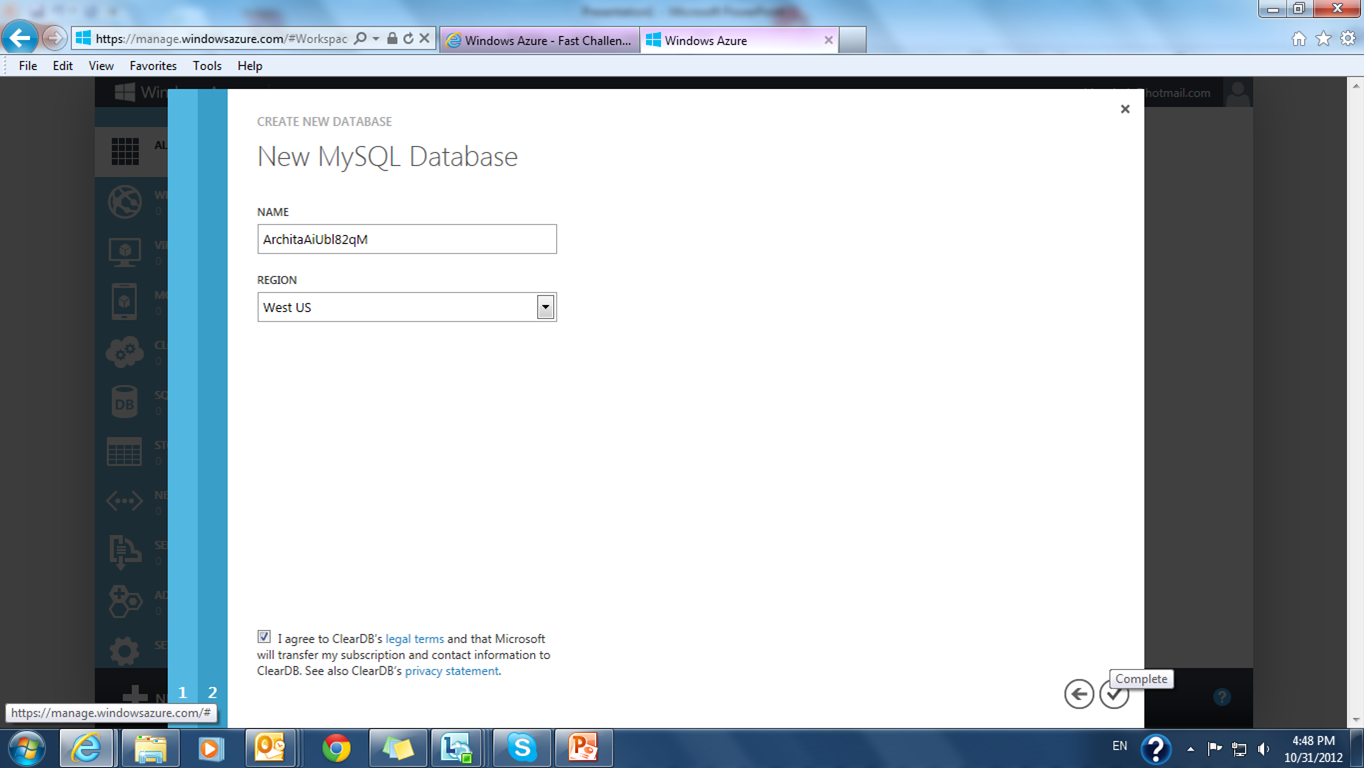
Step 8 : In the next screen give the database name.


 Step 9 : Click on the complete button.( the tick on bottom right)


Step 10 : You will be redirected to the websites page. Click on the link to your website.


Step 11: In this step you need to install the WordPress in your web site.
 Choose the site name and password.
Note : Userame by default is admin.


Step 12 : Now you can login to WordPress , give the username , pwd and login.


Step 13: From this screen you can change your website settings , look and feel as well write quick posts.


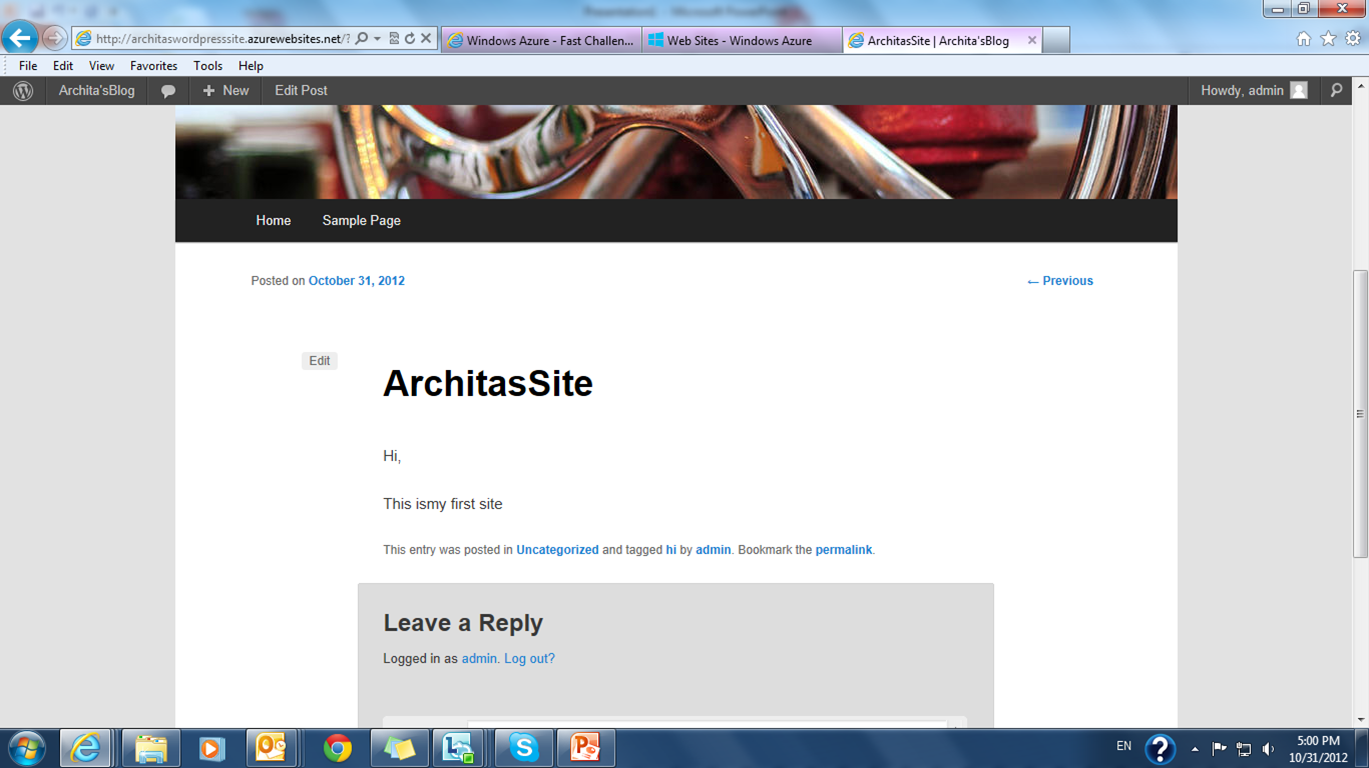
Step 14: Browse to the bottom , type in your post and say publish,


Step 15 : And you are done. Website is ready to be used by the world.


Demo video :
Demo to create a word press site


Tuesday, 21 August 2012

Windows Azure Media Services


Microsoft has introduced Azure media services to overcome the inherent problem of smooth streamlining videos using Azure Blobs.

These are my notes on Azure Media services from MSDN site:

Media Services

Media Services offer the flexibility, scalability and reliability of a cloud platform to handle high quality media experiences for a global audience. Media Services includes cloud-based versions of many existing technologies from the Microsoft Media Platform and our media partners, including ingest, encoding, format conversion, content protection and both on-demand and live streaming capabilities. Whether enhancing existing solutions or creating new workflows, you can easily combine and manage Media Services to create custom workflows that fit every need.

Capabilities
  • upload
  • storage
  • encoding
  • format conversion
  • content protection
  • delivery

Use Media Services to

Scenario
Description
Building end-to-end workflows
Build comprehensive media workflows entirely in the cloud. From uploading media to distributing content, Media Services provide a range of components that can be combined to handle specific application workflows. Current capabilities include upload, storage, encoding, format conversion, content protection, and on-demand streaming delivery.
Building hybrid workflows
You can integrate Media Services with existing tools and processes. For example, encode content on-site then upload to Media Services for transcoding into multiple formats and deliver through Windows Azure CDN, or a third-party CDN. Media Services can be called individually via standard REST APIs for integration with external applications and services.
Providing cloud support for media players
You can create, manage, and deliver media across multiple devices (including iOS, Android, and Windows devices) and platforms.

Media Services Client

  • Mac and PC client support. Use Microsoft Silverlight to develop streaming clients.
  • Windows 8 desktop applications. Windows 8 supported development languages and constructs including HTML, Javascript, XAML, C# and C+.
  • Embedded or dedicated devices. Devices such as connected TVs, set-top boxes, Blu-Ray players, OTT TV boxes, and mobile devices that have a custom application development framework and a custom media pipeline.
  • Windows Phone. Use a Microsoft SDK to build premium Windows Phone applications.
  • iOS devices. Use a Microsoft SDK to build clients for iPhone, iPod, and iPad.
  • Android devices. Use SDKs provided by Microsoft partners to build Android clients.
Namespaces:

  • Microsoft.WindowsAzure.StorageClient.dll
  • Microsoft.Data.Edm.dll
  • Microsoft.Data.OData.dll
  • Microsoft.Data.Services.Client.dll
  • Microsoft.Data.Services.dll
  • System.Spatial.dll
  • Microsoft.WindowsAzure.MediaServices.Client.dll

Notes:

At the time you create a Media Services account, you also create an associated storage account (or use an existing one) in the same geographic region as the Media Services account.

Accessing Media Services requires two associated accounts:

  • A Media Services account. A Media Services account does not store actual media content. Instead it stores metadata about the media content and media processing jobs in your account. At the time you create the account, you select an available Media Services region. The region you select is a data center that stores the metadata records for your account.

  • An associated storage account. Your storage account is a Windows Azure storage account that is associated with your Media Services account. The storage account provides blob storage for media files, and must be located in the same geographic region as the Media Services account. If you delete a Media Services account, the blobs in your related storage account are not deleted.

  • To get media content into Media Services, first create an asset and add files to it, and then upload the asset. This process is also called ingesting content.

To encrypt an asset for transport and storage to protect its contents, pass the parameter 

  • AssetCreationOptions.StorageEncrypted to the method. To keep the asset unencrypted, pass the parameter AssetCreationOptions.None to the method.
  • For media content on the server, you can encode the content with a number of media encodings and formats using Windows Azure Media Encoder.
  • After you create media assets and upload them to Media Services, you can access and manage the assets on the server. You can also manage other objects on the server that are part of Media Services, including jobs, tasks, access policies, locators, and more.


When you create a media service three things are linked to it:
  • Storage account
  • Windows Azure Media encoder
  • Windows Azure Media Origin

You can use a Content Delivery Network (CDN) to improve performance, scalability, and availability of content provided over the Internet. This section describes how to enable a Windows Azure CDN with a Media Services origin server.

Currently, you can only monitor your blob storage usage and until you configure storage monitoring for your Media Services account, no monitoring data is collected and the metrics charts on the dashboard are empty. Similarly to general storage monitoring, you can choose the level of blob storage monitoring - minimal or verbose - and specify the appropriate data retention policy for the service.Note Additional costs are associated with examining monitoring data in the Windows Azure (Preview) Management Portal.


In monitoring, set the level of monitoring and the data retention policy for Blobs.To set the monitoring level, select one of the following:

  • Minimal - Collects metrics such as ingress/egress, availability, latency, and success percentages, which are aggregated for the Blob, Table, and Queue services.
  • Verbose – In addition to the minimal metrics, collects the same set of metrics for each storage operation in the Windows Azure Storage Service API. Verbose metrics enable closer analysis of issues that occur during application operations.
  • Off - Turns off monitoring. Existing monitoring data is persisted through the end of the retention period.

To set the data retention policy, in Retention (in days), type the number of days of data to retain from 1 to 365 days. If you do not want to set a retention policy, enter zero. If there is no retention policy, it is up to you to delete the monitoring data. We recommend setting a retention policy based on how long you want to retain storage analytics data for your account so that old and unused analytics data can be deleted by the system at no cost.


Metrics are stored in the storage account in four tables named $MetricsTransactionsBlob, $MetricsTransactionsTable, $MetricsTransactionsQueue, and $MetricsCapacityBlob.


Saturday, 9 June 2012

Windows Azure

What is cloud Computing

Cloud is a computing model provisioning web-based software, middleware and computing resources on demand.


What is cloud Computing Simple explanation
http://www.youtube.com/watch?v=xLAN1EjQnhU&feature=related

A very good introduction to cloud computing from SalesForce
http://www.youtube.com/watch?v=ae_DKNwK_ms&feature=related
A really liked this. Awesome.


It is basically technology as a service it consists of three things:

  • IaaS : Infrastructure as a service
  • PasS : Platform as a service
  • SaaS : Software as a service


SaaS,PassS,Iaas Expalined Better : Explaining Computers
http://www.youtube.com/watch?v=SgujaIzkwrE&feature=related


The key components of cloud solution are:

  • Virtualised computing
  • Virtualised Storage
  • Virtualised Connectivity


Benefits of Cloud Computing:

  • By deploying in cloud you give users access only to the resources they need for a particular task.This prevents you from paying idle computing resources.
  • Cloud provides self-service capability to internal business units and outside customers.
  • In a cloud computing environment increasing a department's storage allocation ans automatically extending storage into new physical media is relatively easy to do.
  • Cloud computing can also go beyond cost savings by allowing users to access the latest software and infrastructure offerings to foster business innovation.
Types of Cloud :

  • Public
  • Private
  • Hybrid
  • Community

Types of Cloud ; From CloudPro
http://www.youtube.com/watch?v=22c7vPKKyqM

We will see more on cloud types and IaaS , PaaS , SaaS in the next article.

But to conclude here ,the juice in cloud comes from software abstraction layers above the hypervisiors and SAN managers that map application requirements into the actual capabilities of pooled server disks , fibers and cables.

Also, in addition to being self servicing in nature , your application should provide self-serve portal enabling customers to request and schedule computing resources.